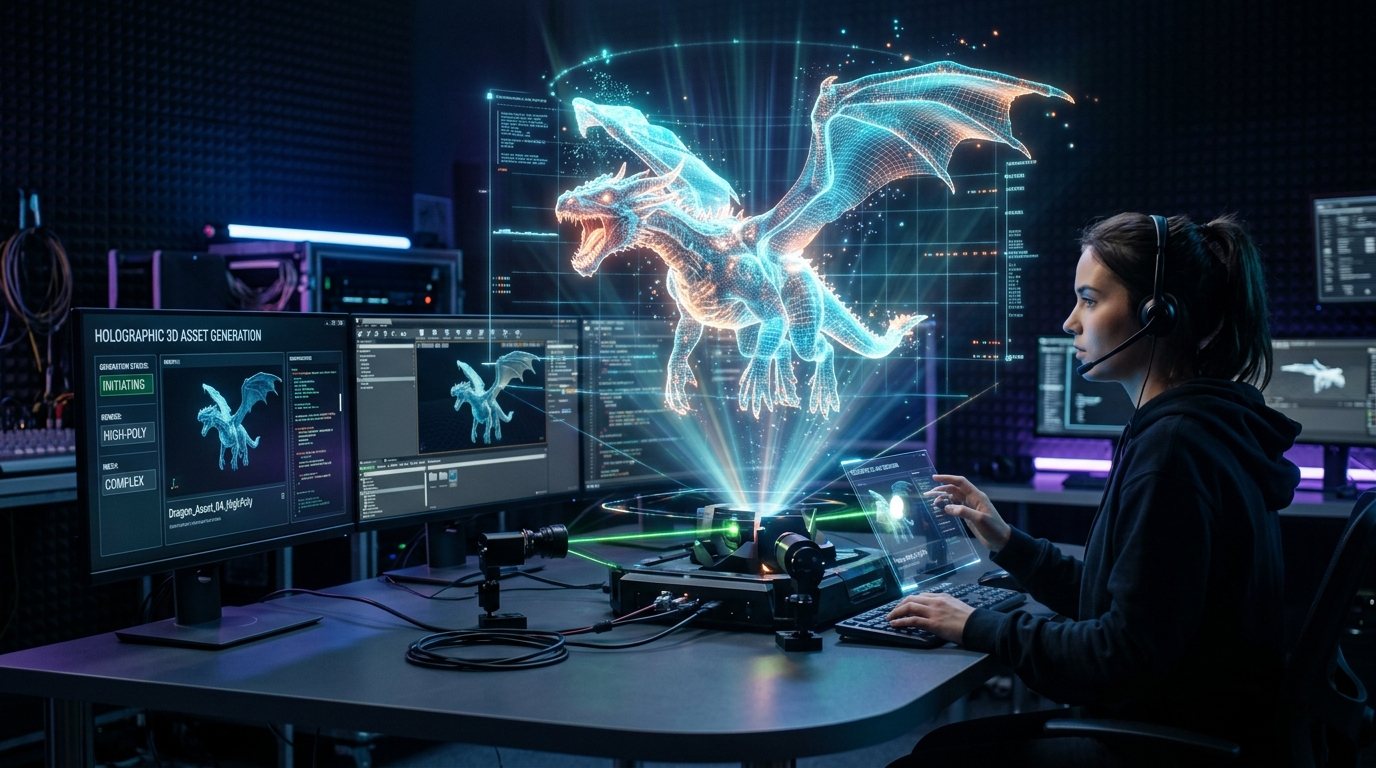
AI 3D Previs in Blender: Rapid Cinematic Visualization
A Comprehensive Guide to Accelerating Scene Blocking and Visualization with AI Assets
The landscape of cinematic pre-visualization in media production has undergone a radical transformation by 2026. What used to take weeks of manual labor—sculpting gray-box environments, rigging temporary characters, and painstakingly lighting rough scenes—is now achieved in a fraction of the timecite: 164. The convergence of high-performance open-source software like Blender with sophisticated generative AI has created a streamlined workflow that allows directors to move from a script to a spatial realization almost instantlycite: 165. By leveraging an AI 3D Model Generator, filmmakers are no longer restricted by the technical bottlenecks of asset creation, enabling a more fluid and iterative creative process cite: 166.
Key Insights
- Instant Asset Prototyping: AI-driven generation eliminates the need for manual gray-boxing, allowing high-fidelity scene blocking within minutes cite: 167.
- Pipeline Interoperability: Modern workflows rely on standardized formats like USD and GLB to bridge the gap between generative platforms and DCC tools like Blender cite: 168.
- Viewport Efficiency: Real-time visualization in 2026 demands optimized geometry cite: 169; decimation and proxy workflows are essential for maintaining high frame rates during complex previs sessions cite: 170.
- Creative Autonomy: Directors and cinematographers can now test lighting, framing, and lens choices using production-adjacent assets early in the development cycle cite: 171.
The New Era of Cinematic Previs in 2026
Discover how integrating AI-generated 3D models into Blender accelerates cinematic pre-visualization pipelinescite: 172. This section explores the massive industry shift from manual gray-boxing to instant, high-fidelity scene blocking using Tripo AI, drastically reducing iteration time for directors, art departments, and cinematographers cite: 173.
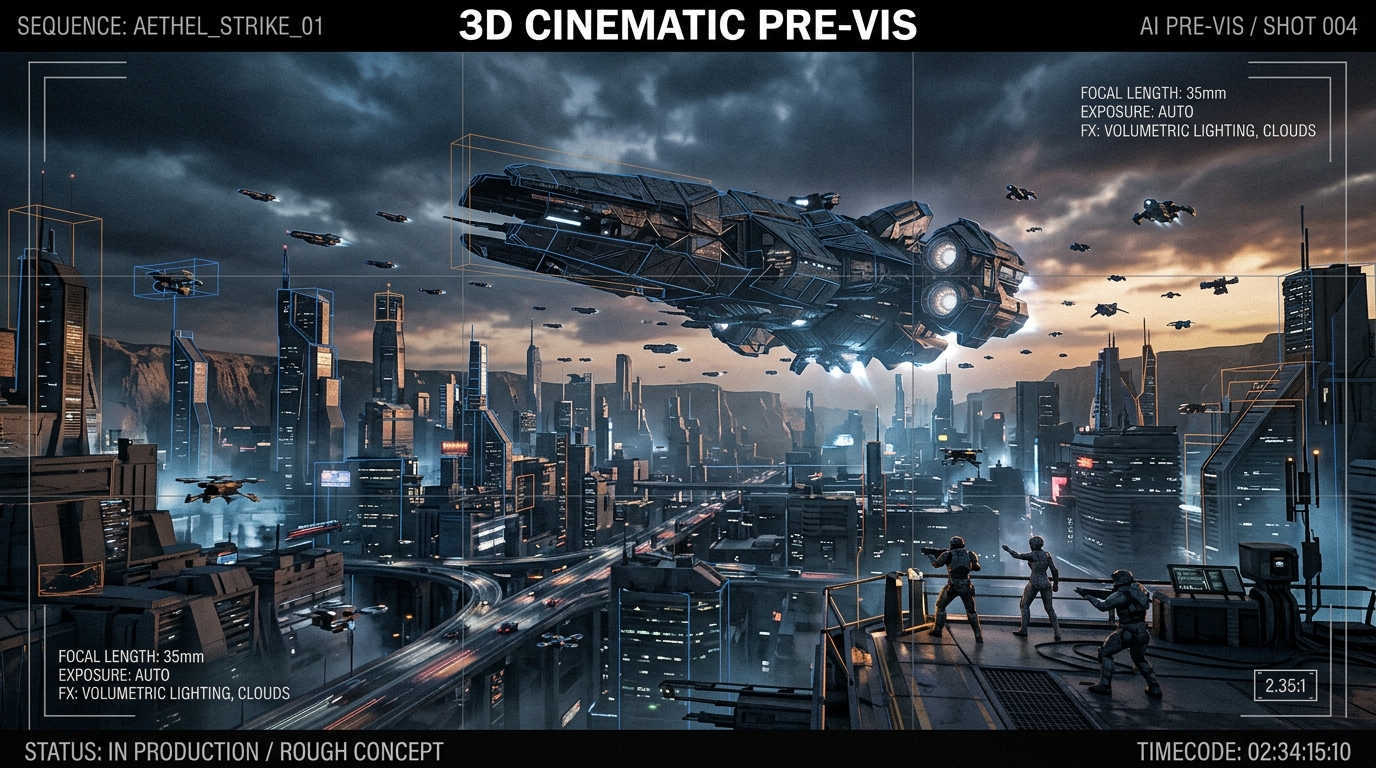
In the traditional filmmaking pipeline, the pre-visualization (previs) stage served as a rough blueprintcite: 174. Artists would use primitive shapes—cubes, spheres, and cylinders—to represent complex actors or set piecescite: 175. This "gray-boxing" phase was functional but lacked the visual nuance required to truly evaluate lighting, silhouette, and emotional weightcite: 176. By 2026, the industry has moved toward "High-Fidelity Previs." The advent of 3D Generative AI allows production teams to populate a 3D scene with assets that carry realistic proportions and textures from the very first draft cite: 177.
From Gray-Box to AI-Assisted Scene Blocking
The leap from primitive shapes to AI-assisted blocking represents more than just a visual upgrade cite: 178; it is a fundamental shift in how spatial storytelling is approachedcite: 179. When a director can see a character with the correct anatomical silhouette and a vehicle with accurate mechanical proportions, the decisions regarding camera placement and focal length become much more accuratecite: 180. Tripo AI enables this by generating complex meshes from simple text descriptions or concept sketches, bypassing the days of searching through asset libraries or waiting for a modeler to finish a rough sculptcite: 181. This speed allows for a more experimental environment where multiple scene variations can be compared in real-time cite: 182.
Accelerating Director Approvals and Pitching
Pitching a vision to stakeholders or obtaining a green light from a studio often hinges on the clarity of the pre-visualizationcite: 183. Low-fidelity gray-boxes frequently require a "leap of faith" from executives who may not have the spatial imagination of a seasoned artistcite: 184. With the current 2026 workflow, the previs is nearly indistinguishable from a polished rough cutcite: 185. By using high-fidelity assets early on, directors can present a much more compelling case for their creative choicescite: 186. The ability to show a fully realized environment, complete with atmospheric lighting and detailed props, significantly reduces the friction in the approval process and ensures that everyone—from the DP to the VFX supervisor—is aligned on the visual goal cite: 187.
Seamlessly Integrating Tripo AI Models into Blender
Learn the exact, step-by-step workflow for importing Tripo AI assets directly into your Blender pipelinecite: 188. We explore the optimal industry-standard export formats—such as USD, FBX, OBJ, and GLB—ensuring materials, textures, and meshes translate perfectly for rapid cinematic scene assembly.
Once the assets are generated, the technical challenge shifts to integrationcite: 189. Blender’s robust import system is designed to handle a variety of data types, but the choice of format dictates how much work is required once the file is inside the scenecite: 190. For a seamless 2D to 3D conversion workflow, the goal is to maintain the integrity of the mesh data and the associated PBR (Physically Based Rendering) textures without manual relinking cite: 191.
Choosing the Right Format: USD, FBX, OBJ, or GLB
In the 2026 production environment, the choice of file format is critical for pipeline stabilitycite: 192. GLB (the binary version of glTF) has become the gold standard for web-to-Blender transfers because it packs the mesh, UV maps, and texture images into a single filecite: 193. This eliminates the common "pink texture" error caused by missing file pathscite: 194. However, for more complex cinematic pipelines that involve multiple software packages (like Houdini or Unreal Engine alongside Blender), USD (Universal Scene Description) is the preferred choicecite: 195. USD allows for non-destructive layering and better handling of complex scene hierarchies, making it ideal for large-scale environment previs where Tripo AI assets are just one part of a larger ecosystemcite: 196. FBX and OBJ remain useful for legacy support, but they often require more manual setup of materials and scale adjustments cite: 197.
Automating Material Setup in Eevee and Cycles
Blender’s dual-engine system—Eevee for real-time and Cycles for ray-tracing—requires materials that are versatilecite: 198. When importing assets from Tripo AI, the textures are typically provided as a standard PBR set (Base Color, Roughness, Normal, and Metallic)cite: 199. In 2026, many artists use Python scripts or built-in add-ons like Node Wrangler to automate the connection of these maps to the Principled BSDF shadercite: 200. This ensures that as soon as an asset is dropped into the scene, it reacts correctly to the light sourcescite: 201. For previs specifically, Eevee is the workhorse, providing immediate feedback on how a character’s silhouette looks under a specific key light or how a metallic surface reflects the environment cite: 202.
Optimizing AI 3D Assets for Real-Time Viewport Performance
Master the essential optimization techniques required to keep Blender's viewport highly responsive when handling multiple AI-generated previs modelscite: 203. This section outlines rapid decimation strategies, proxy generation, and efficient asset management techniques specifically tailored for heavy, multi-layered cinematic 3D environments.
As the number of AI-generated assets in a scene grows, the demand on the GPU increasescite: 204. A typical previs scene might contain dozens of characters, vehicles, and architectural elementscite: 205. Without optimization, Blender's viewport performance can degrade, leading to lag that disrupts the creative flowcite: 206. The key is to balance visual fidelity with geometric simplicity cite: 207.
Quick Geometry Cleanup and Decimation
Generative AI models, while highly detailed, can sometimes produce meshes with a higher polygon count than necessary for a background propcite: 208. Blender’s Decimate Modifier is the primary tool for rapid optimizationcite: 209. By using the "Unsubdivide" or "Collapse" methods, artists can reduce the poly count by 50-80% while retaining the overall shape and UV integritycite: 210. This is particularly useful for assets that will only be seen from a distancecite: 211. In 2026, the focus is on maintaining a clean silhouette for the camera rather than perfect topology, which is reserved for the final production modelscite: 212. This approach allows the previs team to keep the scene "light" and responsive cite: 213.
Utilizing Proxy Workflows for Massive Sets
For expansive environments—such as a futuristic city or a dense forest—even decimated models can overwhelm the systemcite: 214. This is where Blender’s Library Overrides and Proxy systems come into playcite: 215. By linking assets from external files and using a low-resolution proxy for viewport interaction, artists can manipulate massive sets with easecite: 216. The high-resolution AI-generated model only appears during the render or when specifically toggledcite: 217. This workflow is essential for cinematographers who need to move the camera through large spaces without experiencing frame drops, ensuring that the timing of a camera move is judged accurately against the scene's action cite: 218.
Lighting and Framing with AI Previs Assets
Explore how to effectively light, compose, and frame complex scenes using AI 3D previs modelscite: 219. We detail exactly how to use Tripo assets to test cinematic lighting setups, precise depth of field, and heavy volumetric effects quickly before committing to final production.
Lighting is the soul of cinematographycite: 220. In the previs stage, the goal is to establish the mood and guide the viewer’s eyecite: 221. Because Tripo AI assets come with accurate textures and materials, they interact with Blender’s lighting system in a way that gray-boxes never couldcite: 222. This allows for a more sophisticated exploration of visual storytelling techniques cite: 223.
Establishing Cinematic Lighting Rigs Fast
With high-fidelity assets, the DP can begin testing specific lighting ratios earlycite: 224. Using Blender’s Area lights and IES profiles, the team can replicate the behavior of real-world cinematic fixturescite: 225. Because the AI models have realistic surface properties, the way light wraps around a character’s face or glints off a car’s hood provides valuable data for the actual shootcite: 226. Artists can experiment with high-contrast noir lighting or soft, diffused natural light, seeing the results instantly in the Eevee viewportcite: 227. This phase often involves creating "Light Groups," allowing the director to toggle between different times of day or emotional beats within the same spatial layout cite: 228.
Testing Camera Lenses and Depth of Field
One of the most powerful aspects of using Blender for previs is its accurate camera simulationcite: 229. By using AI-generated models, the team can test how different focal lengths affect the perception of space and character relationshipscite: 230. A wide-angle lens might emphasize the scale of an environment, while a long lens can create a sense of compression and intimacycite: 231. Depth of field (DoF) is equally critical; seeing how a background element blurs out helps in directing the audience's attentioncite: 232. High-fidelity previs allows the director to decide exactly which details need to be sharp and which can remain suggestive, providing a clear roadmap for the camera department on setcite: 233.
FAQ
1. How do I fix missing textures when importing Tripo AI models into Blender?
A: When importing models, especially via FBX or OBJ, textures may appear missing (indicated by a bright pink color)cite: 234. To fix this, first ensure the texture files are in the same directory as the modelcite: 235. In Blender, go to File > External Data > Find Missing Files and select the folder containing your texturescite: 236. If you are using GLB files, this issue is largely avoided as the textures are embeddedcite: 237. For more control, you can open the Shader Editor, select the material, and manually relink the Image Texture nodes to the appropriate maps (Base Color, Normal, etc.) generated by the AI cite: 238.
2. Can I quickly rig static AI 3D previs models for basic character blocking?
A: Yescite: 240. While many AI models are generated as static meshes, they can be quickly prepared for posingcite: 241. For basic character blocking, Blender’s built-in Rigify add-on is the most efficient pathcite: 242. First, ensure your mesh is at the correct scale and has its transforms applied (Ctrl+A)cite: 243. You can then generate a basic meta-rig and use the "Automatic Weights" feature to bind the meshcite: 244. While the deformation might not be production-ready, it is more than sufficient for establishing poses, eyelines, and basic movement in a previs sequencecite: 245. For more advanced needs, exploring Automated Skeleton tools can further speed up this process cite: 246.
3. Which export format retains the optimal scale and rotation for Blender pipelines?
A: For the most consistent results between Tripo AI and Blender, GLB is recommended for individual assets due to its strict adherence to the glTF 2.0 standard, which handles Y-up to Z-up conversion and unit scaling automaticallycite: 247. For complex scenes or studio environments involving multiple departments, USD is the superior choicecite: 248. USD provides a standardized way to handle scale, rotation, and scene hierarchy that is recognized across the industry, ensuring that a model generated today will maintain its spatial integrity throughout the entire production pipelinecite: 249.